Production and development issues happen to even the most experienced developers. The question isn’t if something will break, but how quickly you can find and fix it. The difference between a minor inconvenience and a critical incident often comes down to a few minutes and having the right Shopware debugging tools at your fingertips.
Over the years working with Shopware, I’ve assembled a set of plugins that save hours of debugging and help me quickly understand what’s going on when every second counts. Welcome these must-have tools that should be in every Shopware developer’s arsenal.
In this article, I’ll share my experience and list the Shopware plugins that help diagnose issues, speed up development, and save your mind. It’s important to understand: not every tool belongs in every environment, so I’ll also explain where and how to use them safely.
Shopware Plugin Strategy: Local, Staging, and Production Environments
The key to a solid developer setup is understanding which tools belong where. Not every plugin that’s useful in development should make it to production. Treating all environments the same is a recipe for security, Shopware production issues, and performance problems.
Here’s how I approach each environment:
- Local & Dev environments should be equipped with everything that helps you work faster: verbose debugging tools, database explorers, code introspection utilities, profilers. Speed and insight matter more than security here. This is where you experiment, break things, and dig deep into the code without consequences.
- Staging environments mirror production but can include diagnostic tools that help you catch issues before they go live. Think of staging as close to production, but with enough safety margin to use advanced debugging when needed. This is your last line of defense before real users are affected.
- Production environments need surgical precision: only monitoring and logging tools that are battle-tested, secure, and won’t introduce performance overhead. Every plugin should justify its existence here. If a tool can expose sensitive data or slow down your store, it has no place in production—no matter how convenient it might be. My golden rule is never enable development-oriented plugins in production, even “just for a minute” to debug something. That’s what proper logging and monitoring tools are for.
The Essential Plugin Stack: What Problems Do They Solve?
Before diving into specifics, let’s map out what a comprehensive Shopware developer toolkit actually addresses:
System monitoring
Know immediately when scheduled tasks fail, when the message queue backs up, or when your shop’s configuration has issues that impact performance.
Email delivery verification
Confirm that transactional emails (order confirmations, password resets, shipping notifications) are being sent correctly and diagnose issues when they’re not.
Safe database access
Query your database directly when troubleshooting complex issues, without SSH access or exposing security vulnerabilities.
Development acceleration
Understand plugin interactions, inspect variables, and identify extension points without grepping through vendor directories.
Administrative accountability
Track who changed what and when, especially critical when multiple team members have admin access.
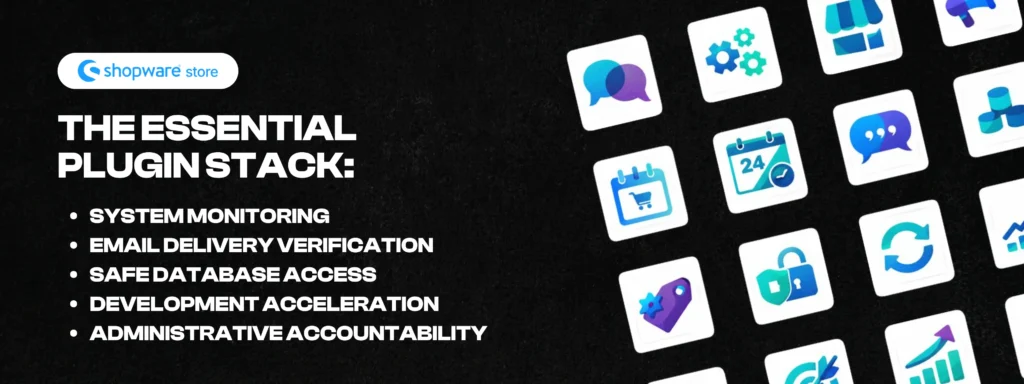
Each of these capabilities addresses a specific pain point that will absolutely come up in your Shopware career. Let’s look at the plugins that deliver them.
The Shopware Must-Have Plugins: Detailed Breakdown
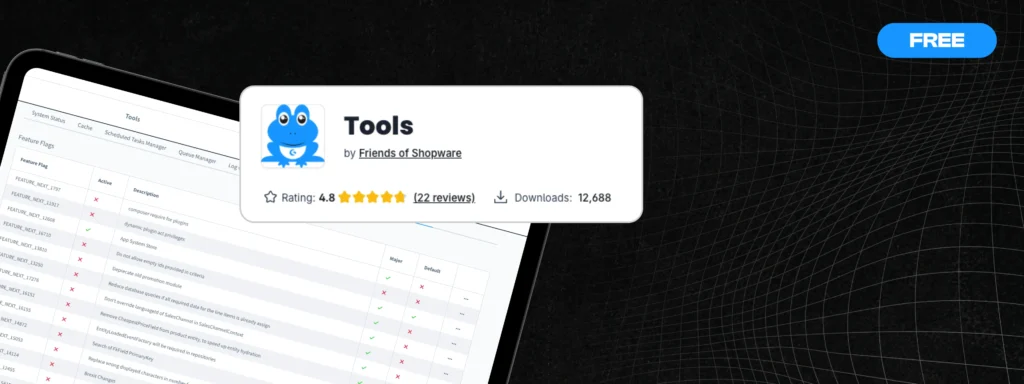
1. Frosh Tools
Environments: Local, Dev, Staging, Production
GitHub: FriendsOfShopware/FroshTools
This is your central nervous system for Shopware health monitoring. Most Shopware issues don’t show error pages, they fail quietly in the background. Frosh Tools makes these invisible problems visible, giving you real-time insight into the parts of Shopware that often fail without warning. It works across all environments, from your local machine to production.
Why it’s essential:
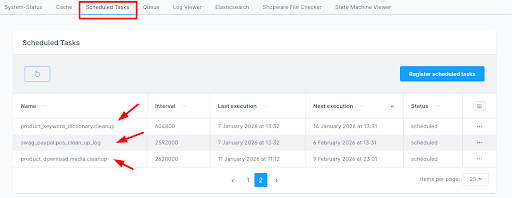
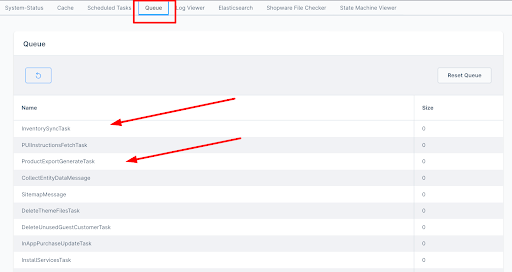
Scheduled task and message queue monitoring. Shopware relies on scheduled tasks for critical operations: sitemap generation, product indexing, email sending, and more. When these fail, they usually fail silently. Frosh Tools shows you the execution history, status, and timing of every scheduled task. You can see what’s in the queue, what’s processing, and what’s failed. Plus, you can trigger tasks manually when debugging, instead of waiting for the next cron cycle. This saves hours when tracking down issues with background processes.
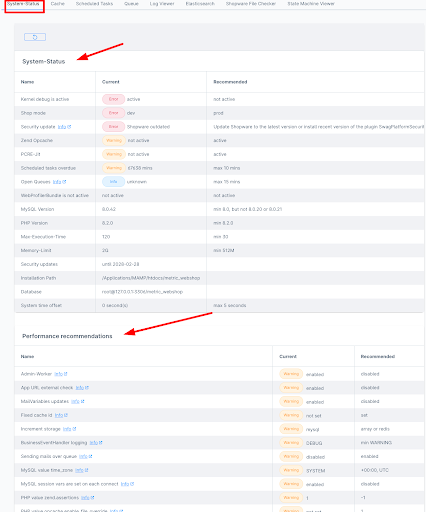
Performance and setup optimization. The plugin analyzes your Shopware instance and flags configuration issues, missing optimizations, or deprecated patterns that could impact performance or cause errors. It’s like having a continuous health check running in the background, telling you what needs attention before it becomes a problem.
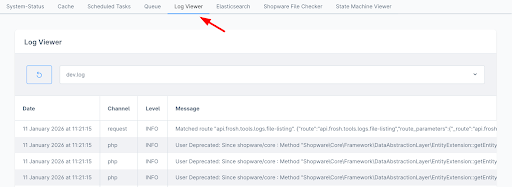
Centralized log access. Instead of SSH-ing into the server and digging through log files, you can view system and plugin logs directly from the admin panel. When something breaks, you can check the logs in seconds rather than minutes.
How to use it:
After installing and activating the plugin, click on the Frosh Tools indicator in your

From there, you can:
- Check if scheduled tasks are executing correctly and view their history
- Monitor the message queue to see what’s processing, queued, or stuck
- Review performance recommendations and setup improvements
- Access logs instantly to diagnose issues
Frosh Tools turns silent failures into visible, actionable information, exactly what you need when debugging Shopware.
2. Mail Archive
Environments: Local, Dev, Staging, Production
GitHub: FriendsOfShopware/FroshPlatformMailArchive
Email issues are surprisingly common in Shopware. When customers report they didn’t receive order confirmations, password reset emails, or status updates, you need to know exactly what happened. Did the email get sent? What did it contain? Was it formatted correctly?
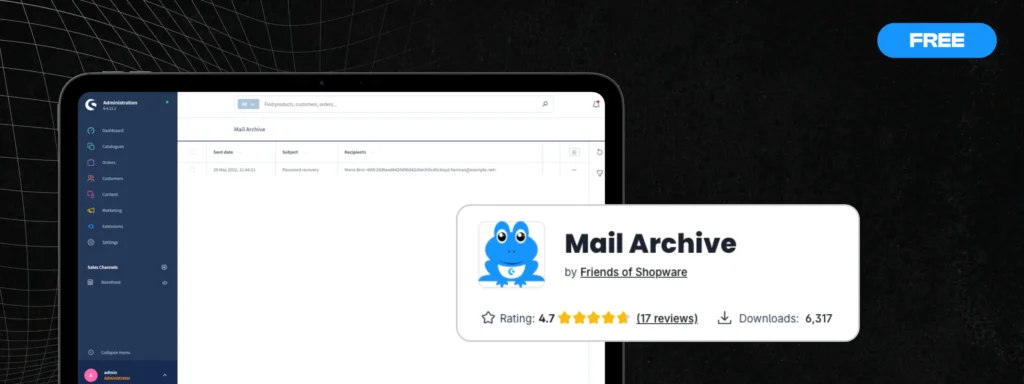
Mail Archive captures every email your Shopware instance attempts to send and stores it in the database. From the admin panel, you can review the complete history: what was sent, when, to whom, and what the content looked like. It works across all environments—from local development to production.
Why it’s essential:
When a customer claims they never received an email, you can verify whether it was sent and inspect the exact content. When you’re testing email templates or workflows, you don’t need a real SMTP server or external debugging tool, just check the archive. It also helps catch issues where emails are technically being sent but have broken formatting, wrong variables, or incorrect recipient addresses.
The debugging time saved here is significant, especially in staging where you’re constantly testing email workflows before they go live.
How to use it:
After installing and activating the plugin, you can access the mail archive directly from your admin panel. Check the screenshots in the plugin repository to see how to review sent emails, inspect their content, and verify delivery attempts.
3. Adminer
Environments: Local, Dev, Staging, Production
GitHub: FriendsOfShopware/FroshPlatformAdminer
Direct database access is sometimes unavoidable when you are debugging complex issues. For example, when you need to see the raw data:
- A broken order with corrupted data
- A failed task that left orphaned records
- A need to inspect exactly what’s stored in a custom field
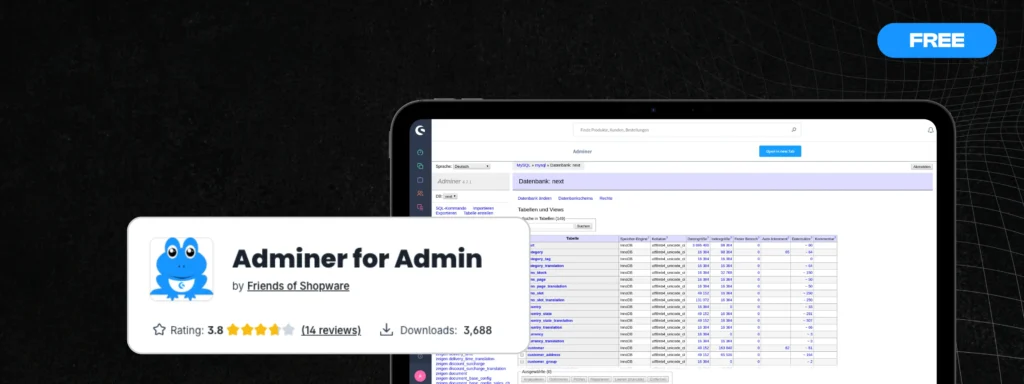
Adminer is a lightweight database management tool directly in your Shopware admin. You get full SQL query capabilities, table browsing, and data inspection without leaving the browser or setting up SSH connections. It works across all environments – from local development to production.
Why it’s essential:
You can easily connect to the database and inspect the tables you need safely. This matters because the traditional approach of dropping an adminer.php file into your public folder is a massive security risk. Anyone who knows the URL can access your database. As security experts note: “Adminer is a single-page database management application that could be easily exploited to grant hackers access to databases, perform SQL injections, or install backdoors on the server.“
The Frosh plugin version protects Adminer behind Shopware’s authentication and ACL rules, making it safe to use across all environments. When you need to verify data integrity, inspect a broken order, check why a scheduled task failed, or understand relationships between tables, Adminer provides that capability securely. It’s particularly useful for developers who need to dig into the database to troubleshoot issues or verify how data is stored.
How to use it:
After installing and activating the plugin, you can access Adminer directly from your Shopware admin panel. Check the screenshots in the plugin repository to see how to browse tables, run queries, and inspect your database safely.
4. Development Tools
Environments: Local, Dev only
Shopware Store: Helpful Development Tools
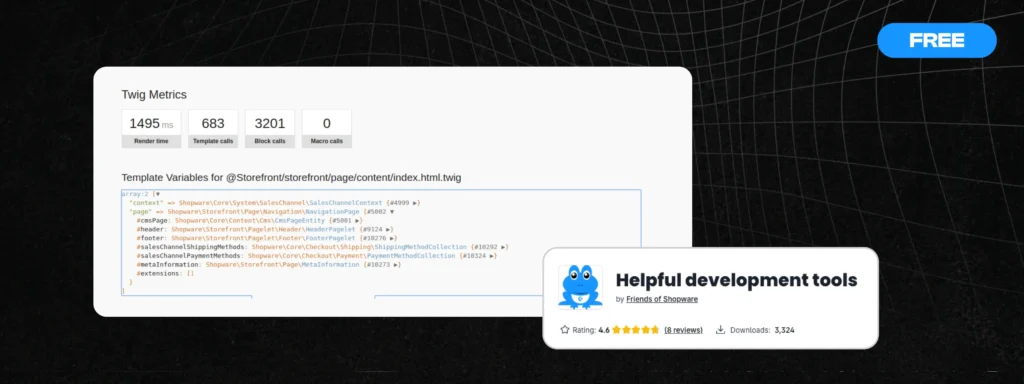
When you’re actively developing on a Shopware instance with multiple plugins, you need to understand what’s happening in the system. Development Tools provides in-depth introspection capabilities, allowing you to inspect variables, identify which plugins are modifying behavior, locate extension points, and trace the execution flow.
Why it’s essential:
If you’re working with multiple installed plugins and need to check variables or understand where to extend functionality, this plugin speeds up your development process.
When you need to extend functionality that’s already been modified by other plugins, or debug unexpected behavior from plugin interactions, these tools show you what’s actually happening in the system.
This is strictly a development tool. Never install it in production—the performance overhead and exposed internals make it inappropriate for live environments. Keep it on local and dev instances only.
How to use it:
Once installed, the plugin integrates into your development workflow and provides the introspection capabilities you need while coding.
5. Administration Activity Logger
Environments: Production (primarily)
Shopware Store: Backend User Activity Logger
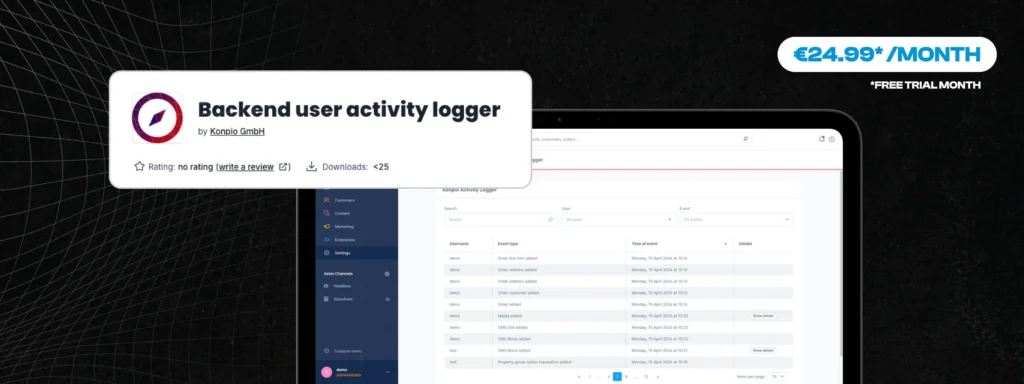
Something breaks in production, and nobody remembers changing anything. An order status workflow fails, a CMS page displays wrong content, or a crucial setting is modified. Administration Activity Logger records every admin action: who logged in, what they changed, when, and the previous value. It’s an audit trail for your admin interface.
Why it’s essential:
With 9+ years of experience, I highly recommend using this plugin or its alternatives to track any activity in the shop admin. Common situations I’ve encountered:
- Shop admin asks: who changed the status of this order and why?
- Content team asks: who modified the CMS page content?
- Management asks: why is the configuration broken and who changed it?
Most production issues trace back to human actions. Marketing updates a product category. Customer service modifies an order. Someone from content management tweaks a setting they didn’t fully understand. People often forget to assign proper roles to marketing, customer service, or content management teams, which leads to giving them more access than necessary.
Without activity logging, these incidents become guessing games or remain unsolved. With it, you can find who made changes, when, and what exactly was modified. You can restore the previous state and implement better role-based access controls to prevent similar issues.
How to use it:
Once installed, the plugin automatically tracks all admin actions. You can review the activity log from your admin panel to see the complete history of changes made to orders, content, configuration, and more.
Real-Life Scenarios: When These Shopware Debugging Tools Save You
Scenario 1: “Customers aren’t receiving order confirmations”
You start checking SMTP settings, restart the mail service, and test sending manually. Is it a template issue? You check spam folders. An hour later, you’re still trying to reproduce the problem.
With Mail Archive, you open the plugin and search for recent order confirmation emails. The emails are being generated, but there’s a broken “from” address causing them to be rejected. Two minutes to fix.
Scenario 2: “The product index hasn’t updated in 12 hours”
You SSH into the server, dig through cron logs, verify scheduled tasks are running, and manually check the message queue table in the database. It’s a lot of back and forth.
With Frosh Tools, you open the scheduled tasks panel and see the index task failing with a memory limit error. The message queue shows thousands of backed-up messages. You increase the memory limit, manually trigger queue processing, and the issue is resolved in 10 minutes.
Scenario 3: “Someone broke the checkout flow and nobody knows what changed”
You start reviewing recent commits, interviewing team members, and checking every configuration panel manually. Someone suggests restoring from backup, but that means losing recent data.
With the Administration Activity Logger, you search the activity logs for checkout-related changes in the past 48 hours. Turns out someone in customer service modified a payment method configuration while trying to process a specific order. You revert the change immediately.
Scenario 4: “A custom plugin is causing 500 errors but only intermittently”
You add debug logging, deploy it, wait for the errors to happen again, SSH in to read log files. Then repeat the whole process.
With Frosh Tools and Adminer, you check system logs directly from the admin, identify the failing database query, use Adminer to inspect the actual data causing the issue. One debugging session, root cause found.
Scenario 5: “Plugin conflict breaking the product detail page”
A client reports that product images aren’t loading on the detail page, but only for certain products. There are five Shopware plugins installed that modify the product page. You start reading through each plugin’s code, checking decorators, trying to figure out which one is causing the issue and why it only affects some products.
With Development Tools, you open the affected product page and inspect the template variables in real-time. You immediately see that one plugin is returning null for the image collection when a specific custom field is empty. You identify which plugin is responsible, understand the exact condition causing the failure, and know where to patch it. What could take hours of debugging takes 15 minutes.
Security and Performance Considerations
Not all Shopware development plugins are created equal when it comes to production environments.
Production-safe plugins:
- Frosh Tools: Minimal overhead, well-tested, used by thousands of stores
- Mail Archive: Only stores data that’s already being processed by the system
- Adminer (Frosh version): Protected by admin authentication and respects ACL rules
- Administration Activity Logger: Designed specifically for production monitoring
Development-only plugins:
- Development Tools: Performance overhead and exposes system internals
- Any plugin that provides code introspection or verbose debugging capabilities
Critical security practices:
- Never expose database management tools publicly. If you need to use standalone Adminer outside the Frosh plugin, protect it with authentication, use it only temporarily, and delete it immediately after use. Better yet – don’t use standalone versions at all.
- Restrict admin access properly. Activity logging only works if users can’t delete the logs. Use role-based access control to limit who can access diagnostic tools and ensure logs remain intact.
- Monitor plugin updates. Security vulnerabilities get discovered and patched regularly. Keep your diagnostic tools updated just as diligently as your core Shopware system.
- Test in staging first. Even well-established Shopware development plugins can conflict with your specific setup. Always verify compatibility and performance in staging before deploying to production.
Conclusion: Building Your Diagnostic Infrastructure
Debugging Shopware issues without proper tools means working blind. You’ll eventually figure it out, but you’ll waste time and potentially make things worse along the way.
The Shopware debugging tools covered here – Frosh Tools, Mail Archive, Adminer, Development Tools, and Administration Activity Logger – form a comprehensive diagnostic toolkit that addresses the most common Shopware issues. They’re battle-tested by me, actively maintained, and used by Shopware developers worldwide. Structure your environments properly: equip local and dev with everything that speeds up your work, keep staging close to production but with diagnostic capabilities, and be selective about what runs in production.
Start with Frosh Tools and Mail Archive. They will solve 80% of your debugging needs across all environments. Add Adminer when you need database access, the Administration Activity Logger for production audit trails, and Development Tools strictly for active development work.